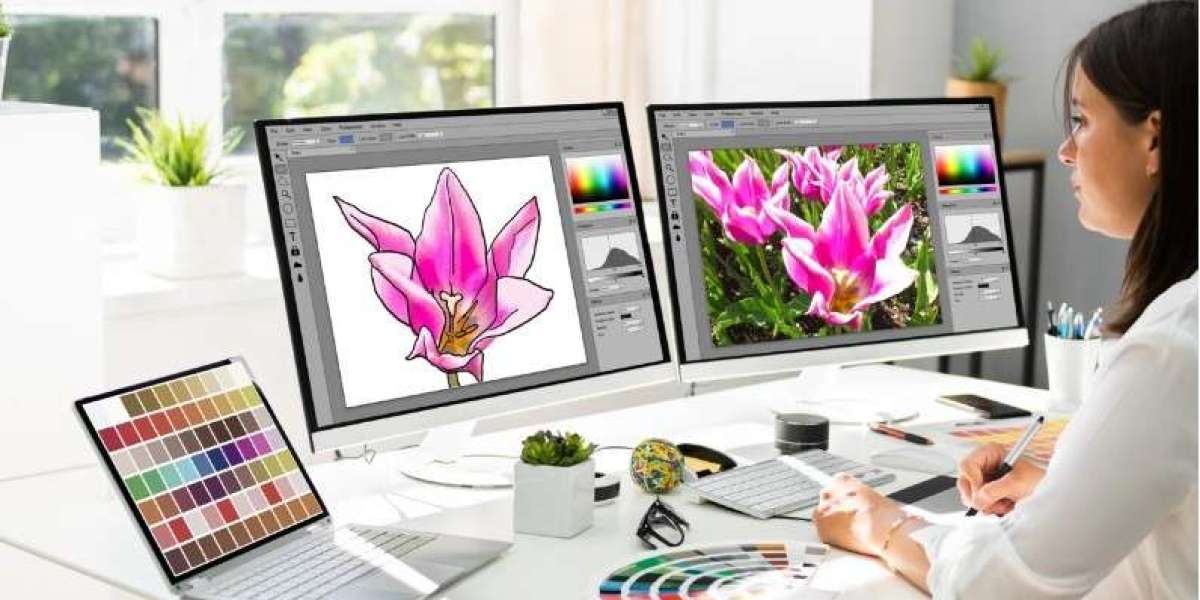
Have you ever enlarged a logo only to find blurry edges, rough lines, or pixelated shapes? This problem can make even a great design look unprofessional. Whether you are preparing artwork for a business, printing custom products, or creating designs for embroidery, image quality matters.
Professional vector artwork creation helps solve this problem by turning images, sketches, and design ideas into clean graphics that can be resized without losing sharpness. Instead of relying on tiny colored pixels, vector graphics use paths, points, curves, and shapes to build an image.
This makes vector artwork useful for logos, product labels, signs, promotional materials, and many other design projects. With the right approach, you can create artwork that looks clear on both a small business card and a large banner.
In this guide, you will learn what vector artwork is, how professionals create it, which file formats matter, and how to prepare designs for different uses.
What Is Professional Vector Artwork Creation?
Professional vector artwork creation is the process of building or converting graphics into vector-based designs. These designs use mathematical paths and shapes rather than a fixed grid of pixels.
Because vector graphics are resolution-independent, they can usually be enlarged or reduced without becoming blurry. This makes them a practical choice for businesses that use the same logo across websites, packaging, clothing, and printed materials.
For example, a company may need its logo on a website, a business card, a vehicle wrap, and a large outdoor sign. A properly prepared vector file helps maintain consistent shapes and clean edges across these different sizes.
Vector Graphics vs. Raster Images
Understanding the difference between vector and raster graphics helps you choose the right format for your project.
Vector graphics are built from paths, curves, and shapes. They are ideal for logos, icons, diagrams, and illustrations with clear edges.
Raster images are made from pixels. Common examples include JPG, PNG, and many photographs. Their quality depends partly on image resolution, so enlarging them too much can reveal visible pixels.
Neither format is best for every situation. Photographs generally work well as raster images, while logos and clean illustrations often benefit from vector artwork.
Why Is Professional Vector Artwork Creation Important?
A design may look fine on your computer but fail when it is printed, cut, engraved, or used in production. Professional vector artwork helps prepare graphics for these real-world needs.
1. Sharp Results at Any Size
One of the biggest benefits of vector artwork is scalability. You can resize a suitable vector design without losing the sharp edges associated with raster enlargement.
This is useful when the same artwork must appear on different products or marketing materials.
2. Consistent Branding
Businesses often use their logos in many places, including websites, packaging, uniforms, brochures, and signs.
A clean vector master file helps keep the logo's proportions, curves, and shapes consistent. It also makes it easier to create different versions for light and dark backgrounds.
3. Easier Editing
Vector artwork allows designers to adjust individual shapes, colors, lines, and curves without rebuilding the entire image.
For example, a designer can change the color of a logo symbol, refine a letter shape, or adjust the thickness of an outline while preserving the rest of the design.
4. Better Preparation for Print and Production
Many printing, sign-making, laser-cutting, and engraving workflows use vector files. A properly prepared file can help production equipment interpret the design more accurately.
However, the file must still meet the requirements of the specific process. Cutting paths, engraving lines, print settings, and embroidery stitches are not interchangeable.
5. Greater Flexibility Across Design Projects
Professional vector artwork can support a wide range of uses, including:
Business logos and brand identities
Product labels and packaging
T-shirt graphics and promotional products
Banners, posters, and signs
Icons and digital illustrations
Laser-cut designs and engraving artwork
Artwork prepared for embroidery digitizing
The key is to prepare the artwork according to its final purpose.
How Professional Vector Artwork Creation Works
Creating high-quality vector graphics involves more than tracing an image. A professional workflow focuses on accuracy, clean shapes, and practical use.
Step 1: Review the Original Artwork
The process begins with the source material. This could be a JPG image, PNG logo, scanned sketch, PDF, or an existing vector file that needs improvement.
The designer checks the image for unclear edges, missing details, uneven shapes, and unnecessary elements.
A clean reference image usually makes the work easier. If the original image is blurry, the designer may need to interpret parts of the artwork carefully rather than simply tracing every pixel.
Step 2: Choose the Right Vectorization Method
There are two common ways to create vector artwork: manual tracing and automatic image tracing.
Manual vector tracing involves rebuilding the design using paths, curves, and shapes. It gives the designer greater control over the final result and is useful for logos that require precise geometry.
Automatic tracing uses software to detect shapes and convert them into vector paths. It can save time on simple, high-contrast artwork, but the result may contain rough edges or too many points.
A professional may combine both methods, using automatic tracing as a starting point and then correcting the shapes manually.
Step 3: Build Clean Paths and Curves
Vector paths define the edges of shapes and letters. Too many unnecessary points can make a design difficult to edit and may create uneven curves.
A skilled designer uses anchor points and control handles to create smooth lines and accurate corners.
For example, a circular logo should have a clean, balanced curve rather than a series of small bends. The same attention is needed for letter shapes, icons, and detailed symbols.
Step 4: Refine Shapes and Proportions
After creating the basic paths, the designer checks how the elements fit together.
This may involve correcting spacing, aligning objects, adjusting line thickness, and refining small details. The goal is to preserve the original design while making it cleaner and more practical.
For logos, consistency is especially important. Uneven spacing or slightly distorted shapes can become more noticeable when the artwork is printed at a large size.
Step 5: Apply Colors and Outlines
The next step is to organize the colors, fills, and strokes. This includes removing unwanted backgrounds, correcting color areas, and making sure that overlapping shapes behave as intended.
If the artwork will be printed, the designer should consider the intended printing method and its color requirements.
For cutting or engraving, the artwork may need specific paths or line settings instead of ordinary decorative outlines.
Step 6: Check the Design at Different Sizes
A vector file can scale without pixelation, but that does not mean every detail will remain useful at every size.
Very small text, thin lines, and tiny gaps may disappear during printing or production. A design intended for a small label may need adjustments that would not be necessary for a large sign.
Reviewing the artwork at its expected final size helps identify these issues early.
Step 7: Export the Correct File Format
Once the artwork is ready, export it in a format suitable for the intended workflow.
Common vector formats include SVG, AI, EPS, and vector-based PDF files. The best choice depends on the software, production equipment, and requirements of the person receiving the artwork.
Keep an editable master file whenever possible. It makes future changes easier and reduces the need to recreate the design.
Common Vector Artwork File Formats
Different file formats serve different purposes. Before exporting your design, confirm which format your printer, client, or production provider requires.
SVG
SVG is widely used for websites, digital graphics, icons, and many cutting workflows. It supports scalable paths and can be edited in compatible vector applications.
AI
AI is an Adobe Illustrator document format commonly used for editable design projects. It is useful when the recipient needs access to layers, shapes, and other editable elements.
Compatibility depends on the software used to open the file.
EPS
EPS is a vector-capable format often used in print and graphic design workflows. It can preserve vector artwork, although the exact content and editability depend on how the file was created and saved.
PDF can contain vector artwork, raster images, text, or a combination of these elements. A PDF is not automatically a fully editable vector file, so its contents should be checked before production.
PNG and JPG
PNG and JPG are raster formats rather than vector formats. They are useful for previews, websites, and many image-based applications, but they do not preserve editable vector paths.
A PNG can have a transparent background, while JPG is commonly used for compressed photographs and images.
What Makes Vector Artwork Professional?
Not all vector files are created equally. A file may open correctly and still contain problems that affect editing or production.
Professional artwork should focus on several important qualities.
Clean and Accurate Paths
Paths should follow the intended shapes without unnecessary points, rough curves, or accidental gaps.
Correct Proportions
The design should maintain the original proportions unless a change has been requested. Text, symbols, and other elements should look balanced.
Organized Shapes
Useful layer names and well-organized objects can make the artwork easier to edit. Unwanted shapes and hidden objects should be removed when appropriate.
Suitable Color Settings
Colors should be prepared for the intended use. Screen colors, print colors, and production colors may differ, so the designer should follow the relevant specifications.
Proper File Delivery
The final package should contain the requested formats and, where appropriate, an editable master file and a preview. Fonts may need to be outlined or supplied according to licensing and production requirements.
These details help make vector artwork more useful beyond the designer's own computer.
Common Mistakes to Avoid During Vector Artwork Creation
A few mistakes can reduce the quality of an otherwise good design. Watch for these issues when creating or converting graphics.
Relying on Automatic Tracing Alone
Automatic tracing can produce too many anchor points, rough edges, and unwanted shapes. Review the result and refine it where necessary.
Enlarging a Low-Quality Image Without Rebuilding It
Placing a small raster image inside a vector document does not turn that image into true vector artwork. If the graphic needs to scale cleanly, its important shapes may need to be recreated as vector paths.
Ignoring Small Details
Tiny gaps, narrow lines, and fine text may not reproduce well in the final application. Check the artwork at its intended size.
Saving Only a Raster Preview
A PNG preview is useful, but it cannot replace an editable vector master file. Keep the original vector document and export the additional formats you need.
Choosing the Wrong Export Settings
A file may lose important properties if it is exported incorrectly. Check transparency, fonts, color settings, and the requirements of the receiving application before delivery.
How to Prepare Vector Artwork for Embroidery
Vector artwork is often used as a starting point for embroidery digitizing, but it is important to understand the difference between the two.
Vector graphics describe shapes and paths. Embroidery files contain stitch instructions that tell the machine how to sew those shapes with thread.
A clean vector logo can make it easier to identify outlines, color regions, and lettering during digitizing. However, it still needs to be converted into appropriate stitches before it can be embroidered.
When preparing vector artwork for embroidery, consider the following:
Remove unnecessary background shapes.
Make sure the important outlines are clear.
Check that lettering is readable at the intended size.
Simplify details that are too small to stitch well.
Keep separate color areas easy to identify.
Share the intended fabric and embroidery dimensions with the digitizer.
For example, a logo with thin lines may look excellent as vector artwork but require thicker elements or simplified details for embroidery. The final design must work with thread, fabric, and the physical limits of the embroidery process.
How to Choose a Professional Vector Artwork Service
If you have a low-resolution logo, a scanned drawing, or artwork that needs cleanup, a professional vector artwork service may be useful.
Before choosing a provider, consider these factors.
Review Relevant Samples
Look for examples of logo recreation, image-to-vector conversion, curve cleanup, and detailed artwork. Samples should show clean edges and accurate shapes, not just a file preview.
Confirm the Required File Formats
Explain how you plan to use the artwork and ask for the appropriate formats. A website graphic, a print-ready logo, and a cutting file may require different preparation.
Explain Your Requirements Clearly
Provide the original artwork, preferred colors, intended size, and any details that must remain unchanged.
If the design will be used for printing, engraving, cutting, or embroidery, mention that before work begins.
Ask About Editable Files and Revisions
An editable source file can be valuable when you need future changes. Also confirm whether corrections are included if the delivered artwork does not match the agreed requirements.
Consider Overall Value
Compare quality, communication, delivery time, and file compatibility rather than choosing based on price alone. Well-prepared artwork can save time when it moves into printing or production.
Conclusion
Professional vector artwork creation helps turn logos, illustrations, and other graphics into clean, scalable designs. By using accurate paths, smooth curves, consistent shapes, and suitable export settings, you can prepare artwork for a wide range of digital and physical applications.
The best approach depends on the source image and how the final design will be used. Automatic tracing can be useful for simple artwork, while detailed logos often benefit from manual refinement.
Always keep an editable master file, check the design at its intended size, and confirm the file format required for production. If your artwork will be embroidered, remember that vector conversion is only the first step; the design must also be digitized into machine-readable stitches.
With careful preparation, your artwork can remain sharp, flexible, and ready for its next use.
FAQs About Professional Vector Artwork Creation
1. What is professional vector artwork creation?
Professional vector artwork creation involves building or converting graphics into paths, curves, and shapes that can be resized without losing sharpness. It is commonly used for logos, illustrations, signs, packaging, and other design projects.
2. Can a JPG or PNG image be converted into vector artwork?
Yes. JPG and PNG images can be used as references for vectorization. Simple graphics may work well with automatic tracing, while detailed or blurry images often need manual cleanup or redrawing.
3. Which file format is best for vector artwork?
There is no single best format for every project. SVG is useful for many digital applications, AI supports editable design work, EPS is used in some print workflows, and PDF can preserve vector content. Choose a format based on the recipient's requirements.
4. Does vector artwork lose quality when enlarged?
True vector shapes can be enlarged or reduced without the pixelation associated with raster images. However, embedded raster images and very small design details may still limit the quality or usefulness of the final result.
5. Is vector artwork ready for machine embroidery?
Not automatically. Vector artwork can help with embroidery design preparation, but it must be digitized into stitch instructions. Stitch types, density, direction, sequencing, and fabric behavior must be considered before the design is ready for an embroidery machine.