A smartphone screen should normally display colors clearly and consistently. When the display suddenly develops a yellow tint, everything from photos and videos to text and app interfaces can appear warmer than usual. A yellow-looking screen can be distracting, especially when you are accustomed to the normal colors on your device.
Fortunately, a yellow tint does not always mean that your smartphone screen is damaged. Display settings, blue-light reduction features, software changes, temperature, screen protectors, and display hardware problems can all affect the appearance of colors. Identifying the cause can help you determine whether the issue can be fixed through settings or whether professional repair is necessary.
For smartphone owners in Douglasville, Mobile Device Techs can help troubleshoot display-related problems and identify potential hardware issues. If the yellow tint does not disappear after basic troubleshooting, professional Cell Phone Repair in Douglasville, GA may be appropriate. Customers with Samsung phones, Samsung tablets, and iPhones can also seek Samsung Phone Repair Douglasville, GA, Samsung Tablet Repair in Douglasville, GA, or iPhone repair in Douglasville, GA when display problems persist.
Why Is My Phone Screen Turning Yellow?
A yellow or warm screen can have several causes. Some are related to display settings, while others involve software or physical hardware.
Common causes include:
Night mode or blue-light filtering
Incorrect display color settings
Accessibility color filters
Software glitches
Screen protector tint
Excessive heat
Aging display components
Liquid or moisture damage
Physical impact
OLED or LCD display problems
The best solution depends on the specific cause.
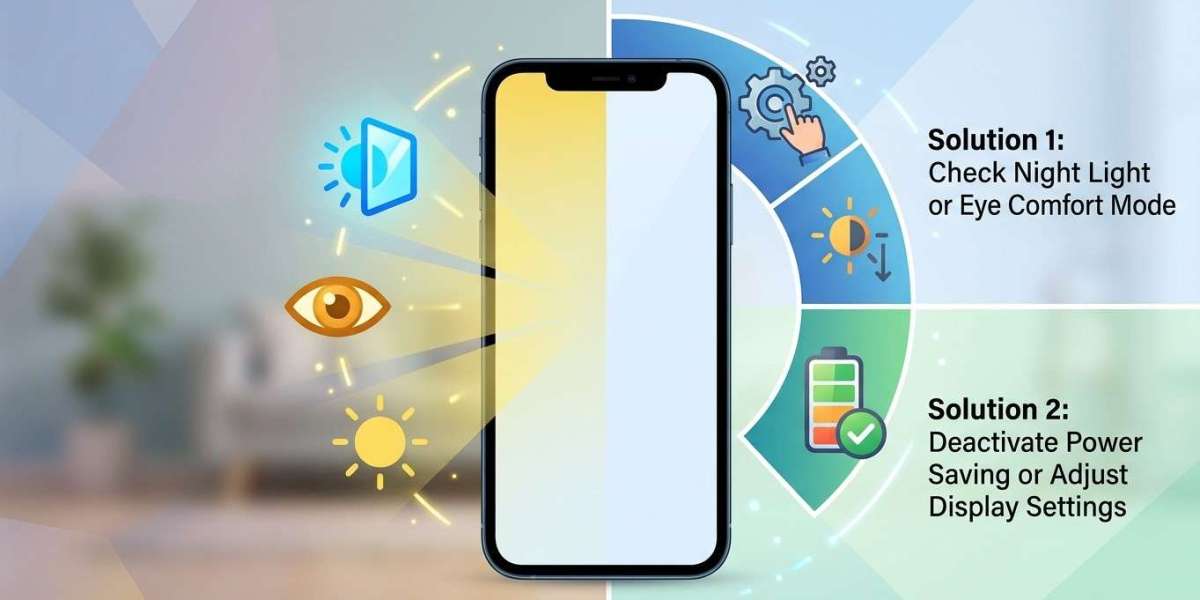
1. Turn Off Night Mode or Blue-Light Filtering
One of the most common reasons a smartphone screen appears yellow is a blue-light reduction feature.
Many phones include features designed to make the display warmer, particularly at night. Depending on the device, these features may be called Night Shift, Night Light, Eye Comfort, Blue Light Filter, or similar names.
These modes reduce blue tones and add warmer colors to the screen. If the feature is enabled, the display may look yellow or orange compared with its normal appearance.
Open your display settings and temporarily disable the feature. Then check whether the screen returns to its normal color.
If the yellow tint disappears immediately, there is likely nothing wrong with the display hardware.
2. Check Display Color Settings
Some smartphones allow users to customize screen color temperature, saturation, or display mode.
If the color temperature has been manually adjusted toward warmer tones, the entire screen may appear yellow.
Look through your display settings for options such as:
Screen mode
Color temperature
Color profile
Display calibration
Vivid or natural mode
Return the settings to their default configuration and check the display again.
3. Check Accessibility Color Filters
Accessibility settings can change the way colors appear on your screen.
Color filters, color correction, or similar features may accidentally become enabled. Depending on the selected option, whites may appear yellow, red, green, or another color.
Open the accessibility settings and review color-related options.
If you find an active filter that you did not intentionally enable, turn it off and test the screen.
This is especially worth checking if the color changed suddenly without any physical damage to the phone.
4. Restart Your Smartphone
A temporary software glitch can sometimes affect display colors.
Restarting your phone reloads the operating system and display-related services.
Turn the phone off completely, wait a few seconds, and turn it back on.
After restarting, open a white background, such as a browser page or settings menu, and check whether the yellow tint remains.
If the screen returns to normal after restarting, the issue may have been caused by a temporary software problem.
5. Check Whether the Problem Appears Everywhere
Determine whether the yellow tint affects the entire screen or only certain applications.
Open different areas of the phone, including:
Settings
Web browser
Photo gallery
Messaging application
Home screen
Video applications
If every part of the interface looks yellow, a display setting or hardware issue is more likely.
If only one application has a yellow appearance, the problem may be related to that application's settings or content.
6. Inspect the Screen Protector
A screen protector can sometimes change the appearance of a display.
Some protectors have tinted materials or anti-blue-light properties that intentionally make the screen warmer. Others may become discolored as they age.
If the yellow tint appeared after installing a new screen protector, temporarily remove it and inspect the screen again.
If the display returns to its normal color, the protector may be responsible.
When replacing a screen protector, choose one designed to preserve the display's natural color reproduction.
7. Check for Overheating
Excessive heat can affect smartphone displays and other internal components.
If your phone becomes unusually hot while charging, gaming, recording video, or running demanding applications, allow it to cool naturally before checking the screen.
Avoid placing a hot phone in a refrigerator or freezer. Sudden temperature changes can create condensation and cause additional problems.
If the yellow tint disappears after the device cools down but repeatedly returns whenever the phone gets hot, the issue should be monitored carefully.
Frequent overheating may indicate a battery, charging, software, or hardware problem.
8. Install Available Software Updates
Software updates can fix display bugs and improve device performance.
Check your phone's system settings for available updates and install them if appropriate.
A software-related display problem may disappear after an update.
If the yellow tint began immediately after a software update, check for another update or manufacturer-provided fix. Avoid assuming that a software update permanently damaged the screen without first checking other possible causes.
9. Look for Signs of Physical Damage
A yellow display can sometimes indicate physical damage.
If the phone has recently been dropped, bent, crushed, or exposed to pressure, the display assembly may have been affected.
Look for additional symptoms such as:
Cracks in the screen
Dark spots
Lines across the display
Flickering
Touchscreen problems
Uneven brightness
Parts of the screen appearing different colors
If the yellow tint appeared after an impact, professional inspection may be appropriate.
For customers seeking Cell Phone Repair in Douglasville, GA, a technician can inspect the display assembly and determine whether the screen itself requires attention.
10. Consider Liquid or Moisture Damage
Moisture can damage display components and internal connections.
If the phone has been exposed to water, rain, spills, or high humidity, the screen may develop unusual colors or brightness problems.
Liquid damage can sometimes become more noticeable over time rather than immediately after exposure.
If moisture is suspected, avoid charging the device until it has been properly assessed. Do not use a hair dryer or another high-heat source to dry the phone.
Professional inspection can help determine whether internal components have been affected.
11. Check Whether the Yellow Tint Is Uniform
Pay attention to the pattern of the discoloration.
A uniform warm tint across the entire display is more likely to be related to software or display settings.
A yellow patch, corner, line, or uneven area may indicate a hardware problem.
Uneven discoloration can occur when a display component has been damaged, exposed to pressure, or affected by heat or moisture.
Taking a screenshot can sometimes help with diagnosis. If the screenshot looks normal when viewed on another device but the original phone still looks yellow, the display hardware or settings may be responsible.
When Should You Seek Professional Screen Repair?
A yellow screen does not automatically mean that you need a new display. However, professional assistance is worth considering when the problem continues after checking settings and software.
Seek professional evaluation if:
The yellow tint does not disappear after disabling display filters.
The screen has visible cracks.
Only part of the screen is yellow.
The problem began after a drop.
The phone was exposed to water.
The display is also flickering.
Touchscreen responsiveness has changed.
The screen is becoming progressively more discolored.
The device becomes unusually hot.
Samsung users can consider Samsung Phone Repair Douglasville, GA if the display appears physically damaged. Owners of Samsung tablets with similar problems can seek Samsung Tablet Repair in Douglasville, GA.
For Apple users, professional iPhone repair in Douglasville, GA can help determine whether an iPhone's yellow display is caused by settings, software, or a damaged screen.
How to Prevent Smartphone Display Problems
Protecting your phone from physical and environmental damage can help extend display life.
Use a good-quality protective case and a properly fitted screen protector. Avoid leaving your smartphone in direct sunlight or extremely hot environments for extended periods.
Keep the device away from water and other liquids, even if the phone has some level of water resistance.
Avoid placing heavy objects on the phone or carrying it in situations where it could be bent or crushed.
Keeping your software updated and monitoring unusual heating can also help identify problems early.
Final Thoughts
A smartphone screen turning yellow can be caused by something as simple as Night Mode, a blue-light filter, incorrect color settings, or a tinted screen protector. Software glitches and temporary overheating can also affect how colors appear.
Start by checking display and accessibility settings, disabling blue-light filtering, inspecting the screen protector, restarting the phone, and installing available software updates. If the yellow tint affects only one application, investigate that application before assuming the display is damaged.
When the discoloration is uneven, appeared after a drop or liquid exposure, or continues despite software troubleshooting, professional inspection may be necessary. Mobile Device Techs can assist customers seeking Cell Phone Repair in Douglasville, GA, Samsung Tablet Repair in Douglasville, GA, Samsung Phone Repair Douglasville, GA, and iPhone repair in Douglasville, GA.
Identifying the cause early can help determine whether a simple settings adjustment is enough or whether the display requires professional repair.