Connecting external devices such as USB drives, printers, webcams, and external hard drives should not cause your computer to restart. However, some users experience unexpected restarts immediately after plugging in a new device. This problem can interrupt important work, cause unsaved data loss, and indicate an underlying hardware or software issue. Common causes include insufficient power, faulty USB ports, outdated drivers, incompatible peripherals, and operating system errors. Understanding these potential problems can help you identify the cause and prevent repeated restarts. Whether you need computer repair Albany, professional laptop repair Albany, or dependable computer repair Albany NY services, knowing how to troubleshoot unexpected restarts can help you maintain your computer's reliability.
1. Insufficient Power Supply
One of the possible reasons a computer restarts when connecting external devices is an inadequate power supply. Some peripherals, particularly external hard drives, high-performance webcams, and USB-powered accessories, require additional power to operate.
If your power supply cannot handle the combined demand of your computer and its connected devices, the system may become unstable. This is particularly relevant to desktop computers with aging or malfunctioning power supplies.
How to troubleshoot the issue:
- Disconnect unnecessary external devices.
- Connect the affected device to a different compatible USB port.
- Use the manufacturer's recommended power adapter when required.
- Avoid connecting multiple power-hungry devices to an unpowered USB hub.
If your computer continues restarting when connecting different peripherals, have its power supply and related hardware inspected.
2. Faulty USB Ports or Damaged Connectors
Damaged USB ports can cause serious connectivity problems. Bent contacts, loose connections, and internal electrical faults may interfere with normal communication between your computer and external devices.
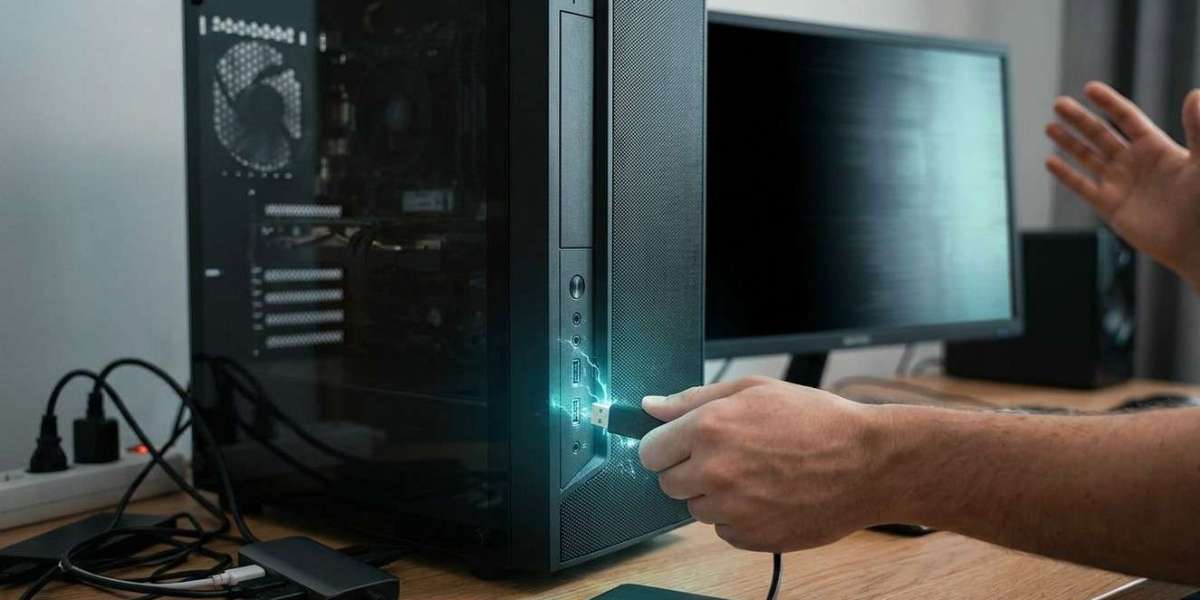
In some cases, inserting a USB connector into a damaged port can trigger a short circuit or another electrical problem, potentially causing an unexpected restart.
Inspect the USB port for visible damage before connecting another device. If a particular port repeatedly causes restarts, stop using it. Try another undamaged, compatible port only if doing so is safe.
Avoid inserting metal objects into USB ports or forcing connectors into place. If you notice burning smells, unusual heat, or visible damage, disconnect the computer from power and seek professional assistance.
3. Outdated or Incompatible Device Drivers
Device drivers allow your operating system to communicate with external hardware. When a driver is outdated, corrupted, or incompatible, connecting a peripheral may cause system instability.
For example, an incompatible printer driver or malfunctioning USB controller driver may trigger errors when Windows attempts to initialize a newly connected device.
To investigate driver-related problems:
- Open Device Manager in Windows.
- Look for devices displaying warning symbols.
- Check the relevant device and USB controller drivers.
- Install compatible updates through Windows Update or the manufacturer's official website.
- Restart your computer and test the device again.
Avoid downloading drivers from unfamiliar websites, as incorrect software can introduce additional problems.
4. Short Circuits in External Devices
A defective external device can sometimes cause a computer to restart as soon as it is connected. Damaged cables, faulty internal components, and electrical problems in a peripheral may interfere with the computer's normal operation.
For example, a damaged USB cable may create an electrical fault when connected to a laptop or desktop.
If your computer restarts whenever you connect one particular device, disconnect it and test another compatible peripheral. If other devices work normally, the original accessory or its cable may be responsible.
Never continue testing a device that causes repeated restarts, particularly if it becomes unusually hot or produces a burning smell. A defective peripheral can potentially damage the computer's ports or other components.
5. Overheating and Hardware Instability
Although connecting an external device does not usually generate enough heat to cause a restart, it can increase the workload on certain components. External storage transfers, video capture devices, and other demanding peripherals may place additional demands on the processor or other hardware.
If your computer already has a cooling problem, this additional workload may contribute to instability.
Common warning signs include unusually loud fans, excessive heat, sudden shutdowns, and performance problems during demanding tasks.
Keep ventilation openings clear, place laptops on hard surfaces, and make sure cooling fans are functioning correctly. If the computer repeatedly restarts under moderate workloads, a technician may need to inspect its cooling system.
6. Windows System Errors and Blue Screen Problems
Sometimes, a computer that appears to restart immediately after connecting a peripheral is actually experiencing a system crash.
A faulty driver, corrupted system file, or incompatible device can trigger a Windows stop error. Depending on the system settings, Windows may automatically restart after encountering a critical error, making it difficult to identify the cause.
To investigate this problem, check Windows Reliability Monitor or Event Viewer for errors recorded around the time of the restart.
You can also review the system's automatic restart settings to make stop errors easier to observe. If a blue screen appears, note the displayed error code.
Identifying the specific error can help distinguish a driver problem from a hardware fault.
7. Incompatible USB Hubs and Adapters
USB hubs and adapters allow computers to connect multiple peripherals, but faulty or incompatible accessories can cause instability.
An inexpensive hub, damaged adapter, or unsuitable cable may interfere with power delivery or communication. Some high-power devices also require a powered hub rather than relying entirely on the laptop or desktop's USB port.
Try connecting the external device directly to the computer using a compatible cable. If the restarts stop, the hub or adapter may be contributing to the problem.
For devices that require additional power, use the manufacturer's recommended power supply and connection method.
8. BIOS, Firmware, and Operating System Compatibility
Occasionally, unexpected restarts are associated with outdated firmware, operating system bugs, or compatibility problems between a computer and a particular peripheral.
For example, certain hardware combinations may experience instability after a major operating system update. In other situations, an outdated BIOS or device firmware may contribute to hardware detection problems.
Check whether your computer manufacturer has released relevant updates or compatibility information. Install updates only when they are intended for your exact device and follow the manufacturer's instructions.
BIOS and firmware updates require particular care. An interrupted or incorrect update can prevent a computer from starting, so avoid attempting advanced updates without understanding the risks.
9. How to Identify the Actual Cause
When a computer restarts after connecting an external device, systematic troubleshooting is more useful than replacing components without testing.
Start by disconnecting all unnecessary peripherals. Restart the computer and connect the affected device only after Windows has fully loaded. If the restart happens again, test a different compatible cable or port, provided there are no signs of electrical damage.
Check whether the problem occurs with one particular accessory or with several different devices. Review Windows error logs and note any messages that appear before the restart.
These observations can help narrow down whether the issue involves a specific peripheral, a driver, a power problem, or the computer itself.
When to Seek Professional Computer Repair
Repeated restarts should not be ignored, particularly when they occur with several different peripherals. Persistent problems may indicate a faulty power supply, damaged USB controller, motherboard issue, or serious driver conflict.
Professional computer repair Albany technicians can perform hardware diagnostics, inspect USB ports, and investigate unexpected system restarts. Experienced laptop repair Albany specialists can also examine charging and power delivery problems, damaged connectors, and internal hardware faults.
For users experiencing recurring restart problems, dependable computer repair Albany NY services can help identify the underlying cause and recommend suitable repairs. If your computer shows signs of electrical damage, stop connecting external devices until it has been inspected.
How to Prevent Unexpected Restarts
Regular maintenance can reduce the likelihood of problems when connecting external devices. Keep your operating system and compatible drivers updated, use reliable cables, and avoid overloading unpowered USB hubs.
Inspect ports and connectors periodically for visible damage. Disconnect defective peripherals immediately and use suitable power adapters for devices that require additional power.
It is also important to save your work regularly and maintain backups of important files. These precautions can help protect your data if an unexpected restart occurs.
Conclusion
A computer that restarts when connecting external devices may be experiencing insufficient power, damaged USB ports, faulty peripherals, driver conflicts, overheating, or operating system errors. Identifying the underlying cause is essential for preventing repeated crashes and protecting your computer.
Begin by checking the connected device, inspecting the ports, and reviewing recent system errors. Avoid repeatedly connecting accessories that trigger restarts, especially if there are signs of electrical damage. For persistent problems, professional computer repair Albany, reliable laptop repair Albany, and experienced computer repair Albany NY technicians can diagnose hardware and software faults and help restore stable computer performance.