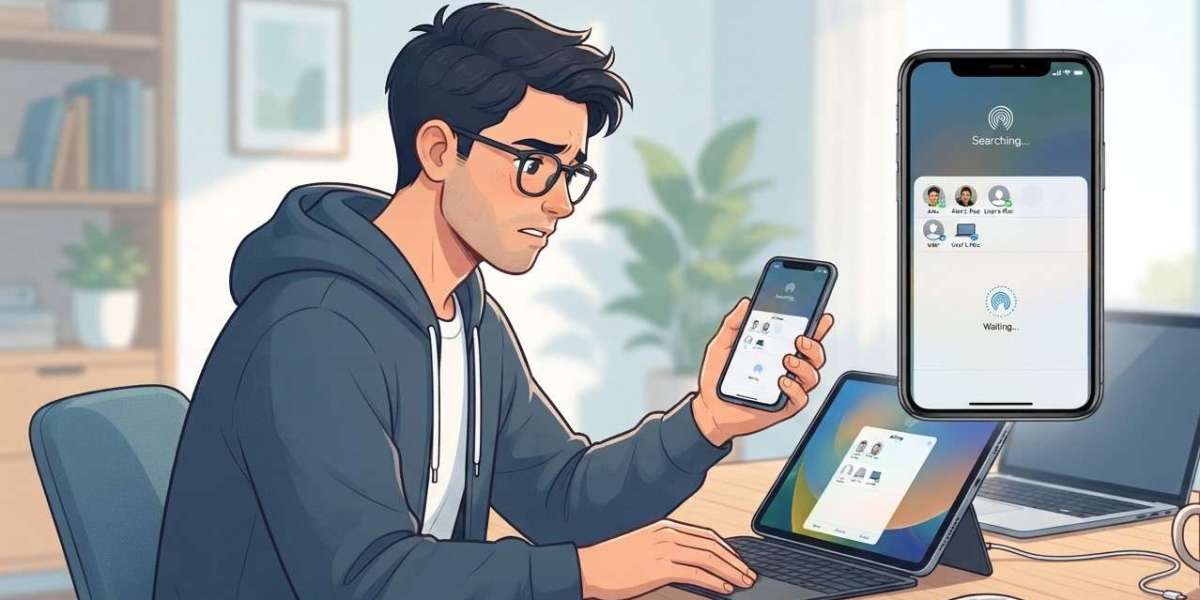
AirDrop is one of the easiest ways to share photos, videos, documents, contacts, and other files between nearby Apple devices. However, it can be frustrating when your iPhone cannot find another device, the recipient does not appear, the transfer gets stuck, or AirDrop suddenly stops working.
At Avenue D Cellular, we understand how inconvenient AirDrop problems can be, especially when you need to quickly transfer important photos or files. If you are searching for cell phone repair brooklyn ny or professional iphone repair brooklyn, knowing the common causes of AirDrop problems can help you determine whether the issue is a simple setting or something that requires professional attention.
AirDrop relies on several features working together, including Wi-Fi and Bluetooth. Both devices also need to meet Apple's AirDrop requirements and be close enough to communicate properly.
Table of Contents
- Why Is AirDrop Not Working on My iPhone?
- Common Reasons AirDrop Stops Working
- How to Fix AirDrop on Your iPhone
- Check Your AirDrop Receiving Settings
- Make Sure Wi-Fi and Bluetooth Are Enabled
- Turn Off Personal Hotspot
- Restart Both Devices
- Check AirDrop Distance
- Update Your iPhone
- Reset Network Settings
- When AirDrop Problems May Be Hardware-Related
- How to Prevent AirDrop Problems
- Frequently Asked Questions
- Conclusion
- CTA
Why Is AirDrop Not Working on My iPhone?
AirDrop problems can happen for several reasons. Your iPhone might not detect the other device, another person may not see your iPhone, the transfer may remain pending, or the file may fail to send.
AirDrop requires both the sender and recipient to have Wi-Fi and Bluetooth turned on. The devices also need to be compatible Apple devices and should be reasonably close to one another. Apple recommends keeping them within about 30 feet, or 10 meters, for AirDrop.
The good news is that many AirDrop problems can be fixed without professional repair.
Common Reasons AirDrop Stops Working
1. Wi-Fi Is Turned Off
AirDrop uses Wi-Fi as part of the connection between nearby devices. If Wi-Fi is disabled, AirDrop may not work properly.
Check:
Settings > Wi-Fi
Make sure Wi-Fi is turned on.
2. Bluetooth Is Turned Off
Bluetooth is also required for AirDrop.
Go to:
Settings > Bluetooth
Make sure Bluetooth is enabled.
Apple recommends keeping both Wi-Fi and Bluetooth turned on when using AirDrop.
3. AirDrop Receiving Is Turned Off
Your iPhone may have AirDrop disabled for receiving files.
Open Control Center, touch and hold the connectivity controls, tap AirDrop, and select an appropriate receiving option such as Contacts Only or Everyone for 10 Minutes.
If AirDrop is set to receiving off, other devices may not be able to find your iPhone.
4. The Other Person Is Not in Your Contacts
If AirDrop is set to Contacts Only, the sender or recipient may not appear unless the appropriate contact information is saved.
For testing purposes, you can temporarily select Everyone for 10 Minutes and try the transfer again.
Keep in mind that on current iOS versions, the Everyone for 10 Minutes setting automatically changes back after 10 minutes.
5. Personal Hotspot Is Turned On
Personal Hotspot can interfere with AirDrop connectivity.
Apple recommends disconnecting Personal Hotspot when using AirDrop if either device has it enabled.
Go to:
Settings > Personal Hotspot
Then turn off the relevant hotspot connection before trying AirDrop again.
6. The Devices Are Too Far Apart
AirDrop is designed for nearby devices. If the iPhone and receiving device are too far apart, the connection may fail or become unreliable.
Move the devices closer together and try again. Apple recommends keeping them within approximately 30 feet (10 meters).
7. Temporary Software Problems
Sometimes AirDrop stops responding because of a temporary software or wireless communication problem.
Restarting both devices is one of Apple's recommended troubleshooting steps when AirDrop is not working.
How to Fix AirDrop on Your iPhone
Try the following solutions one at a time.
Step 1: Check Wi-Fi and Bluetooth
First, make sure both devices have:
- Wi-Fi turned on
- Bluetooth turned on
- AirDrop enabled
- Compatible Apple operating systems
- Enough proximity for the connection
You should check these settings on both the sending and receiving devices.
Step 2: Check AirDrop Settings
On the receiving iPhone, open Control Center and touch and hold the connectivity controls.
Tap AirDrop and choose:
Everyone for 10 Minutes
Then try sending the file again.
If the transfer works with this setting but not with Contacts Only, the issue may be related to contact information or receiving permissions.
Step 3: Try Sending a Smaller File
If you are attempting to send a very large collection of photos or videos, try transferring just one photo first.
A small test can help determine whether AirDrop itself is having trouble or whether the amount of content is contributing to the problem.
Step 4: Restart Both Devices
Restart the sending device and the receiving device.
After both devices restart:
- Turn on Wi-Fi.
- Turn on Bluetooth.
- Enable AirDrop.
- Place the devices close together.
- Try sending one file.
Apple specifically recommends restarting the devices when AirDrop is not working correctly.
Step 5: Check for an AirDrop Code
On current Apple software, AirDrop can require an AirDrop code when sharing with someone who is not in your contacts. Apple introduced this behavior for supported devices running iOS 26.2, iPadOS 26.2, macOS 26.2, or later.
If prompted, follow the instructions shown on the receiving device and enter the displayed code on the sending device.
This security step can make the process look different from older versions of AirDrop.
Check Your AirDrop Receiving Settings
If people cannot find your iPhone when trying to send something, your receiving settings should be one of the first things you check.
Open:
Control Center > Connectivity Controls > AirDrop
You may see options such as:
- Receiving Off
- Contacts Only
- Everyone for 10 Minutes
If you want to receive from someone who is not saved in your contacts, select Everyone for 10 Minutes and test the transfer.
For privacy reasons, you can return to Contacts Only after completing the transfer.
Make Sure Wi-Fi and Bluetooth Are Enabled
AirDrop depends on Wi-Fi and Bluetooth, so both features should be active on the sender and recipient devices.
One important detail is that tapping Wi-Fi or Bluetooth in Control Center does not necessarily turn the features completely off. Apple explains that these controls can disconnect the device from networks or accessories while keeping Wi-Fi and Bluetooth available for features such as AirDrop.
For troubleshooting, you can check the full settings through:
Settings > Wi-Fi
and
Settings > Bluetooth
Make sure both are enabled.
Turn Off Personal Hotspot
If Personal Hotspot is active, disconnect it before trying AirDrop.
AirDrop is designed to establish its own nearby device connection, and Apple specifically recommends disconnecting Personal Hotspot when using AirDrop.
After turning off the hotspot, wait a few seconds and try AirDrop again.
Restart Both Devices
Restarting is a simple but useful troubleshooting step.
If AirDrop was working earlier and suddenly stopped, restarting both devices can refresh wireless connections and temporary software processes.
After restarting, make sure the devices are close together and that Wi-Fi, Bluetooth, and AirDrop are enabled.
Check AirDrop Distance
AirDrop is intended for nearby Apple devices. If you are attempting to send something across a room, through several walls, or from a much greater distance, the transfer may not work reliably.
Bring the two devices closer together and try again. Apple lists approximately 30 feet (10 meters) as the recommended range.
Update Your iPhone
If AirDrop continues to fail, check whether your iPhone has an available software update.
Go to:
Settings > General > Software Update
Keeping the iPhone updated can help ensure compatibility with current AirDrop features and other Apple devices.
If you are trying to AirDrop between devices running significantly different software versions, updating the devices where appropriate may also help.
Reset Network Settings
If AirDrop still does not work after the basic troubleshooting steps, resetting network settings can be considered.
Go to:
Settings > General > Transfer or Reset iPhone > Reset > Reset Network Settings
Be aware that this removes saved Wi-Fi networks and passwords and resets certain cellular, VPN, and APN settings. It should therefore be considered a later troubleshooting step rather than the first solution.
After the reset, reconnect to your Wi-Fi network and test AirDrop again.
When AirDrop Problems May Be Hardware-Related
Most AirDrop problems are caused by settings, software, wireless connectivity, or compatibility issues. However, hardware problems are possible.
Consider professional diagnosis if:
- Wi-Fi repeatedly fails on multiple networks.
- Bluetooth does not work correctly with other accessories.
- AirDrop fails consistently with different Apple devices.
- The iPhone recently suffered a significant drop.
- The device has experienced liquid exposure.
- Wi-Fi or Bluetooth behaves unusually after a repair.
- Network-related features continue failing after software troubleshooting.
If Wi-Fi and Bluetooth both show unusual behavior, the issue may extend beyond AirDrop itself.
A professional technician can inspect the device and determine whether the problem is software-related or potentially connected to internal hardware.
How to Prevent AirDrop Problems
A few simple habits can help keep AirDrop working reliably.
Keep Your iPhone Updated
Install available iOS updates so your device remains compatible with newer Apple features.
Keep Wi-Fi and Bluetooth Available
Since AirDrop depends on both technologies, avoid unnecessarily disabling them when you need to transfer files.
Keep Devices Close
Place the sender and receiver reasonably close together for the transfer.
Check Receiving Settings
If someone cannot find your iPhone, check whether AirDrop is set to Receiving Off or Contacts Only.
Avoid Using Personal Hotspot During AirDrop
Disconnect Personal Hotspot when troubleshooting AirDrop problems.
Restart When AirDrop Suddenly Stops
If AirDrop worked earlier but suddenly becomes unavailable, restarting both devices is a quick troubleshooting step recommended by Apple.
Frequently Asked Questions
Why is my iPhone AirDrop not finding anyone?
Check that Wi-Fi and Bluetooth are turned on for both devices, AirDrop receiving is enabled, and the devices are close enough. Also check whether the recipient is using Contacts Only or Everyone for 10 Minutes.
Why can someone see my iPhone but AirDrop won't send?
Try restarting both devices, moving them closer together, checking Wi-Fi and Bluetooth, and changing the receiving setting to Everyone for 10 Minutes. If prompted on supported newer software, complete the AirDrop code process.
Does AirDrop require Wi-Fi?
Yes. Apple instructs users to have both Wi-Fi and Bluetooth turned on when using AirDrop.
Does AirDrop use Bluetooth?
Bluetooth is part of the AirDrop connection process. Both sender and recipient should have Bluetooth enabled.
Why is AirDrop not working with someone who is not in my contacts?
If your receiving setting is Contacts Only, someone outside your contacts may not appear. Try Everyone for 10 Minutes. On supported current software, an AirDrop code may also be required when sharing with someone who is not in your contacts.
Can Personal Hotspot affect AirDrop?
Yes. Apple recommends disconnecting Personal Hotspot when using AirDrop if either device has it enabled.
Why does AirDrop stop working after a few minutes?
If you selected Everyone for 10 Minutes, that setting automatically changes back after 10 minutes. If you are signed in to your Apple Account, it reverts to Contacts Only; if you are not signed in, it reverts to Receiving Off.
Should I reset network settings if AirDrop isn't working?
Resetting network settings can be considered if basic troubleshooting does not work. However, it also removes saved Wi-Fi passwords and resets other network-related settings, so it is better used as a later troubleshooting step.
When should I get professional iPhone repair for AirDrop?
If AirDrop fails across multiple Apple devices and Wi-Fi or Bluetooth also behave abnormally, professional diagnosis may be useful. This is especially important if the problem started after physical or liquid damage.
Conclusion
When AirDrop is not working properly on your iPhone, the problem is often related to Wi-Fi, Bluetooth, AirDrop receiving settings, device distance, Personal Hotspot, software, or temporary connectivity issues. Start by checking both devices, enabling Wi-Fi and Bluetooth, reviewing AirDrop settings, disconnecting Personal Hotspot, bringing the devices closer together, and restarting them.
If these steps do not solve the problem, testing another Apple device and considering a network settings reset can help narrow down the cause. If Wi-Fi and Bluetooth also have persistent problems, professional inspection may be appropriate.
For dependable cell phone repair brooklyn ny, Avenue D Cellular can help diagnose persistent iPhone connectivity issues. If you need professional iphone repair brooklyn, having your device properly checked can help determine whether your AirDrop problem is caused by software, settings, or possible hardware damage.
CTA
Is your iPhone AirDrop refusing to find nearby devices or complete file transfers?
Don't let AirDrop problems make sharing photos and files unnecessarily difficult. Contact Avenue D Cellular for professional assistance with iPhone and cell phone issues. Whether you need cell phone repair brooklyn ny or reliable iphone repair brooklyn, a proper diagnosis can help identify the cause of the problem and determine the appropriate solution.