Introduction
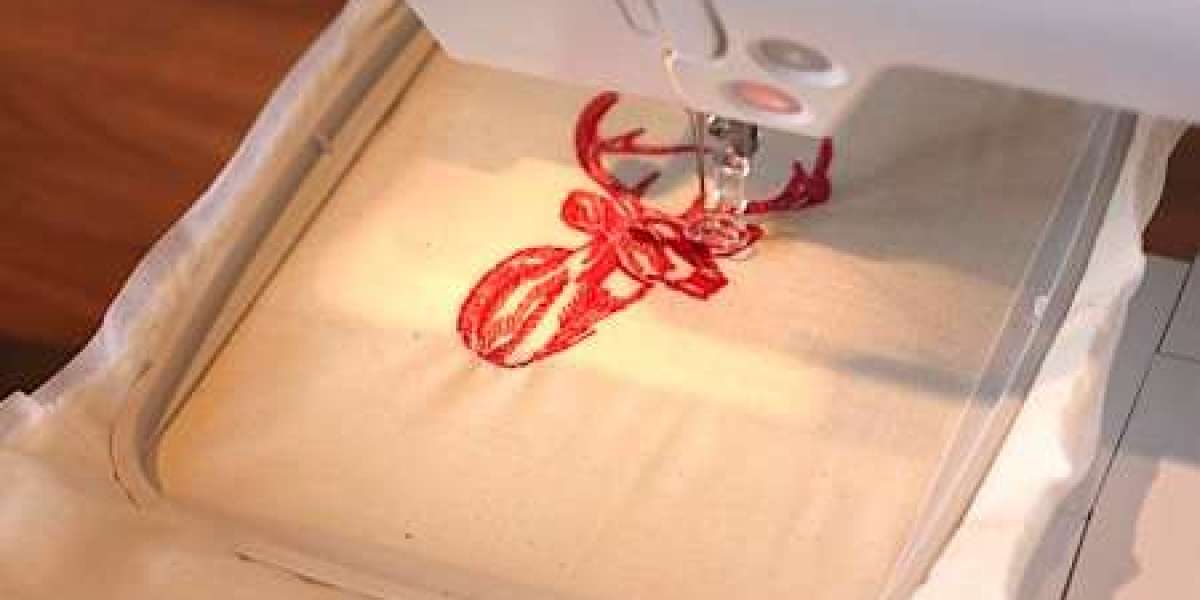
You've found the perfect image—a logo, a graphic, a piece of art—and you can already picture it stitched on a hat or a tote bag. The excitement is real. But you know you can't just send that JPEG to your embroidery machine and hit start. The machine needs a special kind of file, a set of instructions written in the language of stitches. Learning to create that file yourself is one of the most empowering skills you can develop. This process, called Digitizing Embroidery, is the art of translating a visual image into a digital blueprint your machine can follow. While professional digitizers spend years honing their craft, you can grasp the core principles and workflow right now. This step-by-step guide will walk you through the foundational process, helping you think like a pro and avoid the most common pitfalls from the very first design.
Before You Begin: Setting Realistic Expectations
First, let's be clear: true mastery takes practice. Your first few designs will be learning experiences, and that's okay. The goal here isn't to become a overnight expert, but to understand the logical sequence a professional uses and to start developing the critical eye needed for good digitizing.
You will need two things:
Digitizing Software: You can't use Photoshop or Illustrator alone. You need software designed for embroidery, like the affordable Embrilliance, a subscription to Hatch Embroidery, or even a free trial of a more advanced program. This is your essential tool.
The Right Image: Don't start with a family photo or a watercolor painting. Choose a simple image with bold shapes, clear boundaries, and minimal colors. A classic logo, a basic icon, or a simple clipart graphic is perfect. Complexity is your enemy at this stage.
Your Step-by-Step Digitizing Workflow
Follow this sequence to build your design logically and stably.
Step 1: Prepare Your Image File
The old saying "garbage in, garbage out" is especially true in digitizing. Start in a basic image editor like Photoshop, GIMP, or even free online tools.
Simplify: Remove unnecessary background elements and tiny details.
Increase Contrast: Make the edges between shapes as sharp and clear as possible.
Convert to Black & White: For your first try, digitize a single-color design. This removes the complexity of color changes and lets you focus on stitch structure.
Save as a PNG: This format preserves clean edges better than a JPG.
Pro Tip: If you have a vector file (SVG, AI, EPS), use it! Vectors give you the cleanest paths to work from and are a digitizer's best friend.
Step 2: Set Up Your Workspace in the Software
Open your digitizing software and create a new file. Here, you'll establish the rules of the game.
Set Your Hoop Size: Choose a size relevant to your design and your machine's capabilities.
Import Your Image: Place your prepared PNG or vector file onto the digital canvas.
Define Your Stitch Area: Use the software's tools to draw an outline or box that represents the maximum area your design will cover. This helps with planning.
Set the Stitch Direction Guide: Most software has a guideline (often a 45-degree angle) that shows the default direction for fill stitches. You can change this per element later.
Step 3: Trace and Define Your Objects
This is the core of manual digitizing. You will now trace over your imported image, defining each shape as a separate "object" that the software will later fill with stitches.
Use the "Shape" or "Outline" Tools: Don't use auto-trace. Manually create outlines around every distinct shape in your design. For a simple star, you'd create one outline object for the star itself.
Start with the Background Elements: Objects that will stitch first (like a background fill) should be created and placed on lower layers in the software.
Work from Bottom to Top: Create outlines for elements that sit behind others before moving to foreground elements. This builds the proper layering order.
Pro Thinking: Imagine you are breaking down a stained-glass window into individual pieces of glass. Each piece you outline will become a separate section of stitching.
Step 4: Assign Stitch Types & Properties
Now, you give life to those outlined shapes by telling the software what kind of stitches to fill them with. This is where your creative and technical choices shine.
For Large, Solid Areas: Select the shape and assign a Fill Stitch (sometimes called Tatami or Ceeding stitch). In the properties, you'll set:
Density: This is stitches per inch (SPI). For a first try on mid-weight fabric, start around 4.0 - 5.0 SPI. Too dense causes puckering; too sparse shows fabric.
Angle/ Direction: Change the angle of the fill lines (e.g., 45° for one shape, 135° for another) to create visual texture and prevent a monolithic look.
For Borders, Text, and Narrow Elements: Select the shape and assign a Satin Stitch (or Column stitch). You will set:
Width: This dictates how wide the shiny column will be.
Density/Pull Compensation: Satin stitches often need specific settings to stay tight and smooth.
For Fine Details and Outlines: Use a Run Stitch (or Walking stitch). You can adjust the stitch length for more or less detail.
Step 5: Establish Stitch Sequence & Underlay
A professional design stitches in a logical, efficient order. Now you'll set that sequence and add the secret weapon: underlay.
Check the Stitching Order: Use the software's "object order" or "sew sequence" panel. The program should stitch the lowest layer first. Ensure the sequence makes sense (background first, foreground details last).
Apply Underlay to Fill Areas: Select your fill stitch objects and apply an underlay. A good starting point is a Center Run or Edge Run underlay. This foundational stitching stabilizes the fabric and provides a base for the top stitches, preventing puckering and giving a plumper look. This step is non-negotiable for quality results.
Step 6: Generate, Save, and TEST
You've built the blueprint. Now it's time to see it in action.
Generate the Stitches: Use the "Create Stitches" or "Apply" function. The software will render all your outlines into the actual stitch paths.
Save in Your Machine Format: Save the file in the format your machine reads (e.g., .PES for Brother, .DST for Tajima, .EXP for Melco).
DO A TEST STITCH: This is the most important step. Hoop up a scrap piece of the exact fabric you plan to use for the final product. Stitch out your design. Watch it carefully.
The Pro's Review: Analyzing Your Test Stitch
A pro doesn't just hope it works; they analyze the results.
Is it puckering? The density is likely too high, or you need more/better underlay.
Are the shapes distorted? You need to apply "pull compensation" to those objects, slightly widening them in the software to counteract thread pull.
Does it look flat or unstable? You may need to add underlay or increase its density.
Are there too many jumps/trims? Go back and re-order your stitch sequence for better efficiency.
Go back into your software, adjust the problematic elements, save a new file, and test again. This iterative process is exactly how pros refine a design to perfection.
Conclusion
Learning to digitize an image for embroidery is a journey of moving from seeing a flat picture to thinking in layers, sequences, and physical textures. While this guide provides the essential roadmap, remember that proficiency comes with patience and practice. Each test stitch is a lesson. By following this structured, step-by-step approach—preparing your art, manually defining objects, assigning intelligent stitch types, and never skipping the crucial underlay and test stitch—you are adopting the methodology of a professional. You are learning to speak the machine's language. Embrace the learning curve, start simple, and enjoy the profound satisfaction of watching a design you digitized yourself come to life, one perfect stitch at a time.