
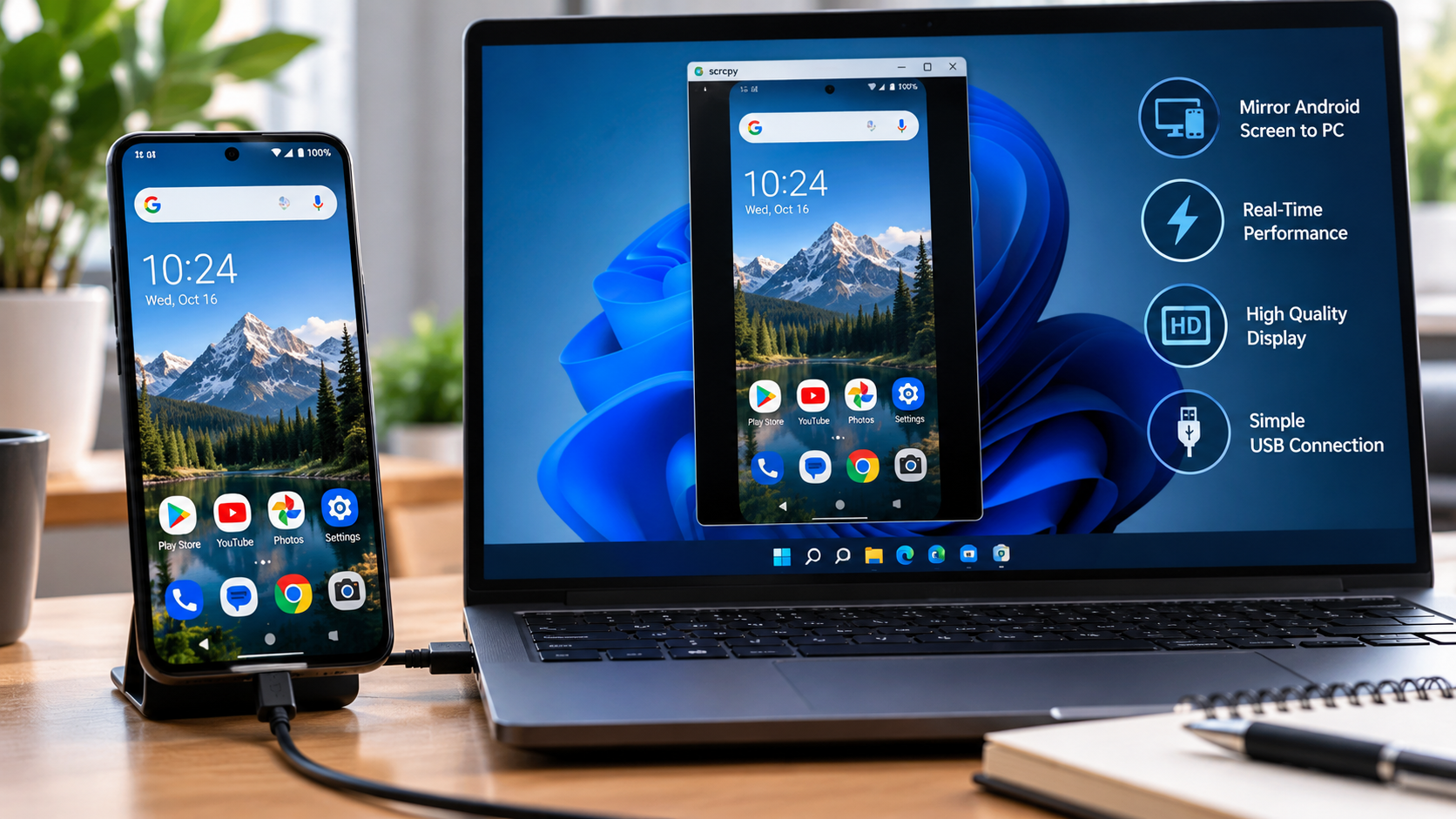

Plenty of everyday tasks are easier on a big screen: showing photos to family, testing an app you are building, typing long messages, or recording a phone screen for a tutorial. Most mirroring apps promise this and then add accounts, watermarks, monthly fees, or a delay that makes games unplayable.
There is a lighter way. The mirror Android to PC guides at Scrcpy Pro explain how the free scrcpy tool streams your Android screen to a Windows, macOS, or Linux computer over a simple cable or your local network, with no account and nothing installed on the phone.
Why Mirroring Beats Picking Up the Phone
Every unlock breaks concentration. When the phone screen sits in a window on your monitor, a notification glance costs two seconds instead of a full context switch, and your hands stay on the keyboard and mouse.
Typing is the clearest win. Long replies, form entries, and notes that feel painful with thumbs become ordinary typing. The clipboard is shared as well, so a link found on the phone pastes straight into a document on the computer.
Presenting and teaching change completely. Instead of passing a phone around a room or crowding over a small screen, you share the computer window in a call or on a projector and everyone sees every tap.
How the Connection Works
Scrcpy starts a small server on the phone through the standard Android debug connection, then streams the screen as video to the computer, where the scrcpy window displays it. Mouse clicks and keystrokes travel back the other way, so the phone is fully controllable from the desk.
Nothing is installed permanently on the phone. The helper runs only while connected and disappears when you unplug, which makes scrcpy safe to use on a work phone or a borrowed device.
Because the video is encoded on the phone and decoded on the computer, the quality is high and the delay is low enough for video calls, app demos, and even casual games. You choose the balance: cap the resolution and bit rate for smoothness, or raise them for crisp recording.
Cable First, Then Wireless
Start with a USB cable for your first connection. It needs USB debugging switched on in the developer options, and after that the phone screen appears on the computer within seconds of running the command.
Once the cable connection works, the same tool can switch to WiFi on your local network. Wireless is ideal for presenting while walking around, or for a phone that lives on a charger across the room. Keep both devices on the same network and expect a little more delay than the cable gives.
A practical tip: the cable route is also the troubleshooter. If wireless misbehaves, plug in, confirm the wired session works, and you have separated a network problem from a phone problem in one step.
Control That Feels Native
The computer keyboard types into any phone app, the mouse clicks and scrolls, and common shortcuts handle the power button, volume, and screen rotation. Dragging a file from the desktop onto the scrcpy window copies it to the phone, and dragging an app package installs it.
You can also keep the phone screen off while mirroring, which saves battery during long sessions. The display on the monitor stays live; only the physical screen sleeps.
For developers and testers, the same session doubles as a debugging window: watch logs on one monitor, drive the app on the other, and record the screen without extra software.
Recording and Screenshots Without Extra Apps
Scrcpy records the mirrored session directly to a video file on the computer. Tutorial makers use this instead of filming a phone with a camera, because the result is sharp, stable, and free of reflections.
Screenshots are equally simple with the computer usual capture tools, since the phone screen is just a window. Support teams use this to document bugs with the exact screen the user saw.
Sensible Settings for a Smooth Session
If the picture stutters, lower the maximum size first; a slightly smaller stream is far smoother than a full resolution one that drops frames. On older phones, limiting the frame rate to thirty also keeps the device cool during long sessions.
For text heavy work such as reading and messaging, raise the bit rate a little and keep the resolution modest. Text stays sharp because the encoder spends its budget on a smaller, steadier picture.
Free, Open, and Under Your Control
Scrcpy is free and open source, maintained in the open, and it works without accounts, ads, or cloud servers in the middle. Your screen travels between your own two devices and nowhere else.
That combination of speed, control, and privacy is why it has become the default answer for Android mirroring. Set it up once with a cable, learn three or four shortcuts, and the phone on your desk quietly becomes part of your computer.